

Screen time
How to set a daily screen time limit on your child's phone (Android and iPhone)
Hami Team7 min read
 Hami Team6 min read
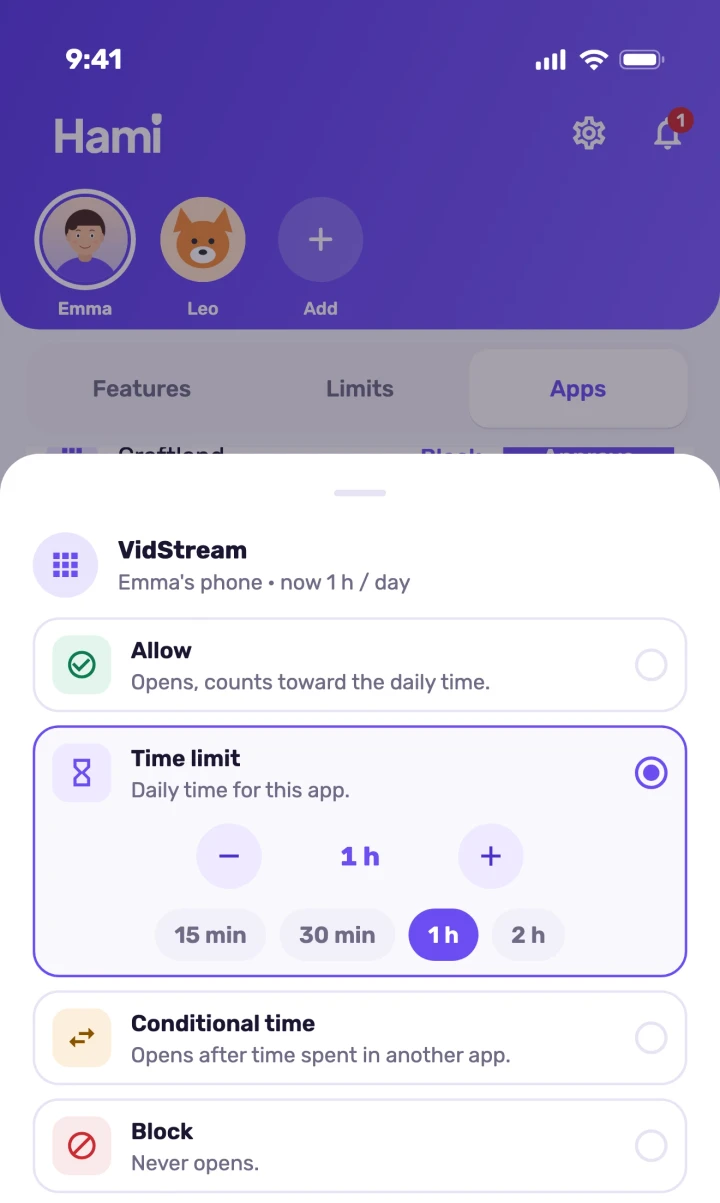
To put a daily time limit on a single app on your child's phone, you choose that app in Hami and give it a "Time limit" rule, for example 30 minutes a day for YouTube. When the time is up, only that app locks; the rest of the phone keeps working. On Android you do this from your own phone. On an iPhone, the app is chosen on the child's iPhone, because that is where Apple allows it.
A total screen time limit is most families' first rule. This guide is about when and why to add a limit for one app; the steps live in a separate guide. Then at some point you hear the same line: "I was using it for homework anyway." And the two hours turn out to have been one hour and forty minutes of YouTube. Per-app limits exist for exactly that moment.
It helps to think of three tools together:
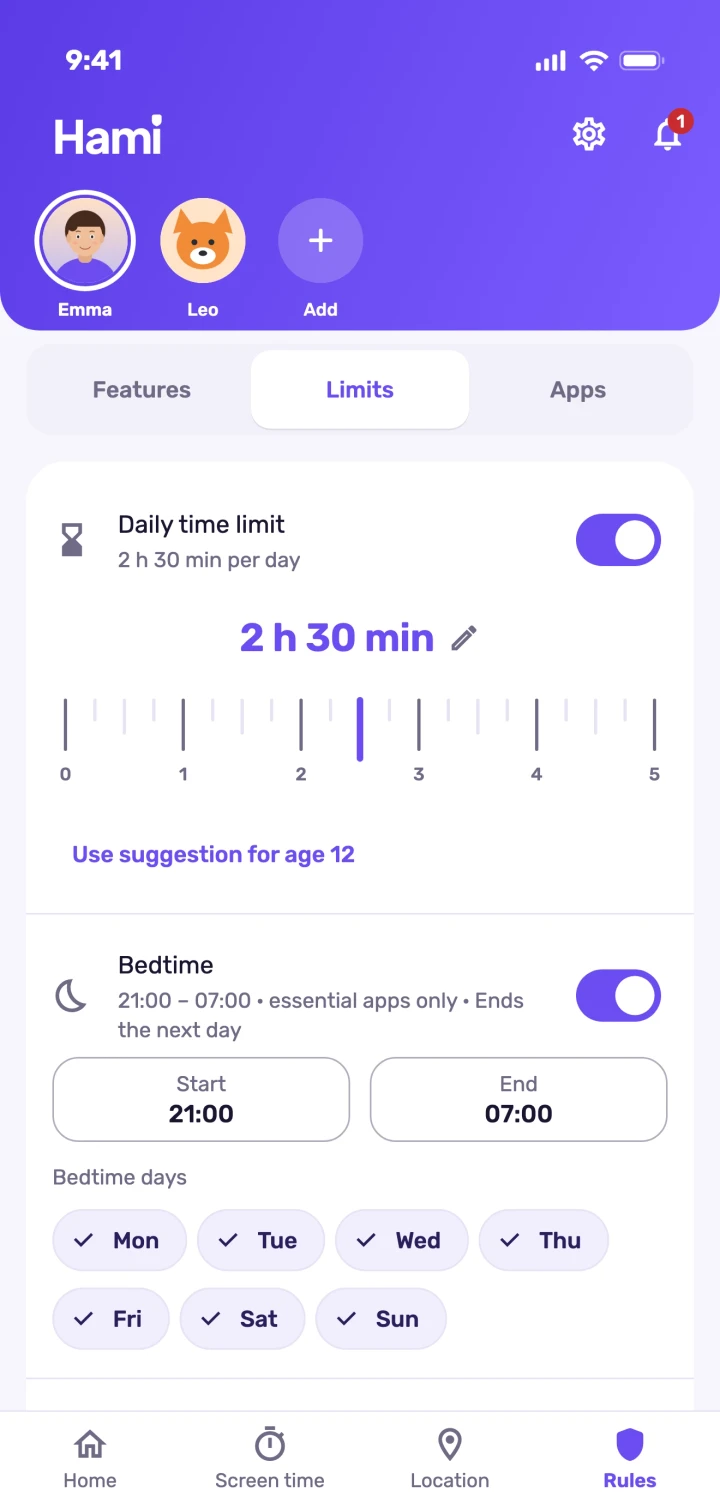
Most families run the first two together: a reasonable total, plus a limit of its own on the one or two apps that take the most time. The daily limit article covers the first; this one is about the second.
On Android, you pick the app from your own phone: Rules, Apps, tap the app, choose Time limit and set the daily time with the presets or the plus and minus buttons. The rule reaches the child's phone at once. When the time is up and the child tries to open the app, the Hami Kids lock screen says why, and the child can send you a request for more time. If one app took most of the week, the weekly report suggests a limit for it, which you can apply with one tap.
On an iPhone, Apple does not let third-party apps see or manage other apps remotely, so the app is chosen on the child's iPhone in Apple's own picker, from the parent settings in Hami Kids behind your parent PIN. Hami on your phone sees how many apps and categories were chosen, not which ones. When a limit is reached, the lock screen can keep showing an earlier reason until the app is restarted; what is locked is always correct.
The screen-by-screen steps for both platforms are in step by step: app time limits and conditional time in Hami. The full list of iPhone limits is in what parental controls can do on an iPhone.
On Android you can lock a whole category instead of picking apps one by one: games, social media, video. Every app in a locked category is blocked, and a newly installed game falls under the same rule automatically. Handy for switching games off during the school week and back on at the weekend.
There is no category lock on iPhone. You can tick a category in Apple's picker and give it a time limit, but that is giving a category time, not locking it.
Limiting too many apps at once. With five or six apps on separate clocks, neither the child nor you can follow what closes when. Two or three limits plus the daily total is enough; on Android the category lock covers the rest.
Forgetting the browser. A limit on the YouTube app does not stop the same video opening in a browser. On Android, give the browser a limit too or block the site in web protection; on an iPhone the browser may need a rule of its own, and the blocked-sites list in web protection helps too (see the web protection article).
It depends on what the app is for. Thirty to forty-five minutes for YouTube is a common choice; thirty minutes to an hour for a game. Measuring for a week before deciding helps: Hami's app list shows how long each app was used today, and the weekly report shows the week's total.
Talk the limit through with your child. When you say "YouTube is half an hour a day", your child sees it as an open rule in Hami Kids and is not caught by surprise. The argument becomes about the amount, not about the existence of the rule. That is a healthy argument to have.
Find the one app that takes the most time in your child's app list and give it a limit. Check a week later: did total screen time drop, or did another app take its place? If you would rather tie a reading or learning app to game time, conditional time does exactly that. The screen-by-screen steps are in the app time limits and conditional time guide.
Yes. In Hami you pick YouTube from your child's app list and give it a Time limit, say 30 minutes a day. When it runs out only YouTube locks; the rest of the phone keeps working.
They do, but Apple only allows apps to be chosen on the child's iPhone itself. You open the parent settings in Hami Kids with your parent PIN, pick the app in Apple's picker and set the time. Hami does not see the app's name, only how many rules exist.
Blocking means the app never opens. A time limit opens it for a set time each day, then locks it. Conditional time opens it only after time has been spent in another app.
On Android there is a category lock: every app in a category such as games or social media is blocked. On an iPhone you can pick a category in Apple's picker and give it a time limit, but the category lock itself is Android-only.
Screen time
Hami Team7 min read
App limits
Hami Team6 min read

iPhone
Hami Team5 min read
Set it up in about five minutes. Your child can always see which rules are on.