
How to set app time limits and conditional time
To put a daily time limit on one app in Hami, choose the app from your child's Rules › Apps list and give it a Time limit. For conditional time, choose Conditional time in the same place and set which app must be used first, and for how long. On Android both are done from your own phone; on an iPhone the app is chosen on the child's iPhone, in the parent settings of Hami Kids, because that is where Apple allows it.
Which rule does what?
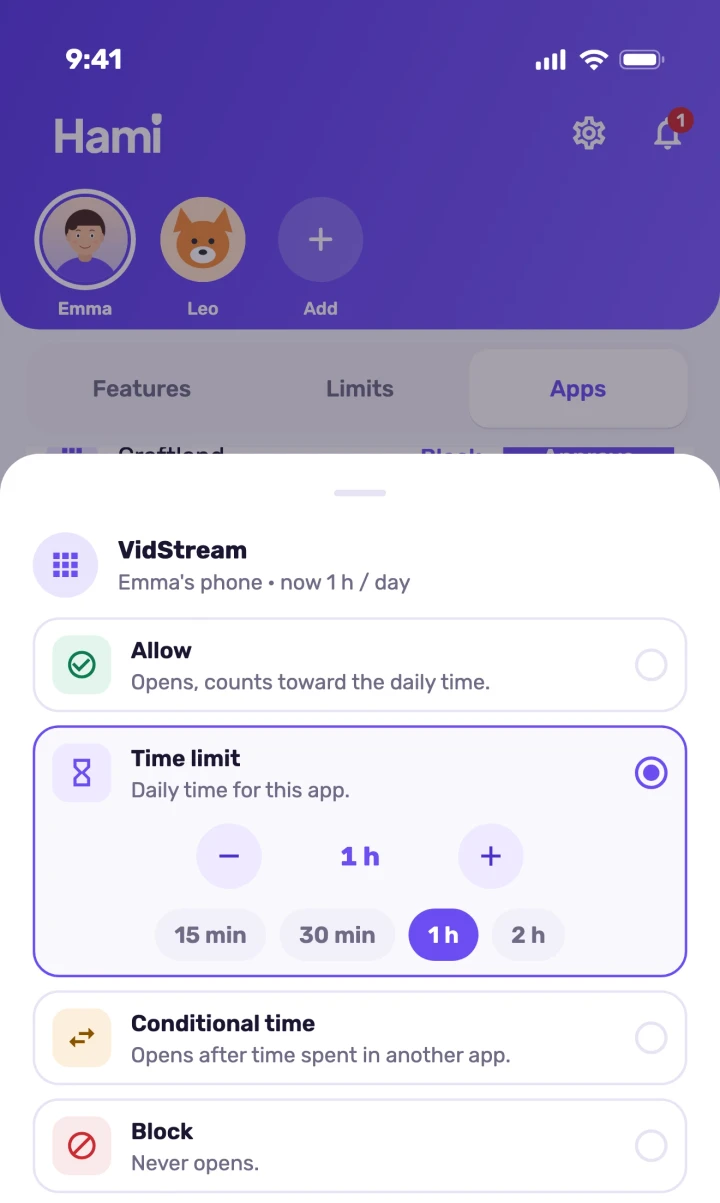
When you tap an app you see four options:
| Rule | What it does |
|---|---|
| Allow | Opens, counts toward the daily time. Bedtime, school time and the lock still apply. |
| Time limit | Daily time for this app; when it runs out, only this app locks. |
| Conditional time | Opens after time spent in another app. |
| Block | Never opens. |
The total daily limit sits above all of these: even with 45 minutes given to an app, it will not open if the child has finished the day's time.
Android: time limit step by step
- In Hami, choose your child, open Rules and go to Apps. The apps on the child's phone are listed, with a search box.
- Tap the app and choose Time limit.
- The amount opens in the same sheet: use the 15 min, 30 min, 1 h and 2 h presets or the plus and minus buttons, then tap Save. The rule reaches the child's phone immediately.
Apps with a rule appear in their own group with a label such as "30 min / day", and today's usage next to it, like "22 min today".
Android: conditional time step by step
- In Rules › Apps, tap the app that will be the reward (a game, say) and choose Conditional time, then tap Continue.
- At "Which app should be used before this one?", pick the earning app. Blocked, always-allowed and waiting apps are not listed.
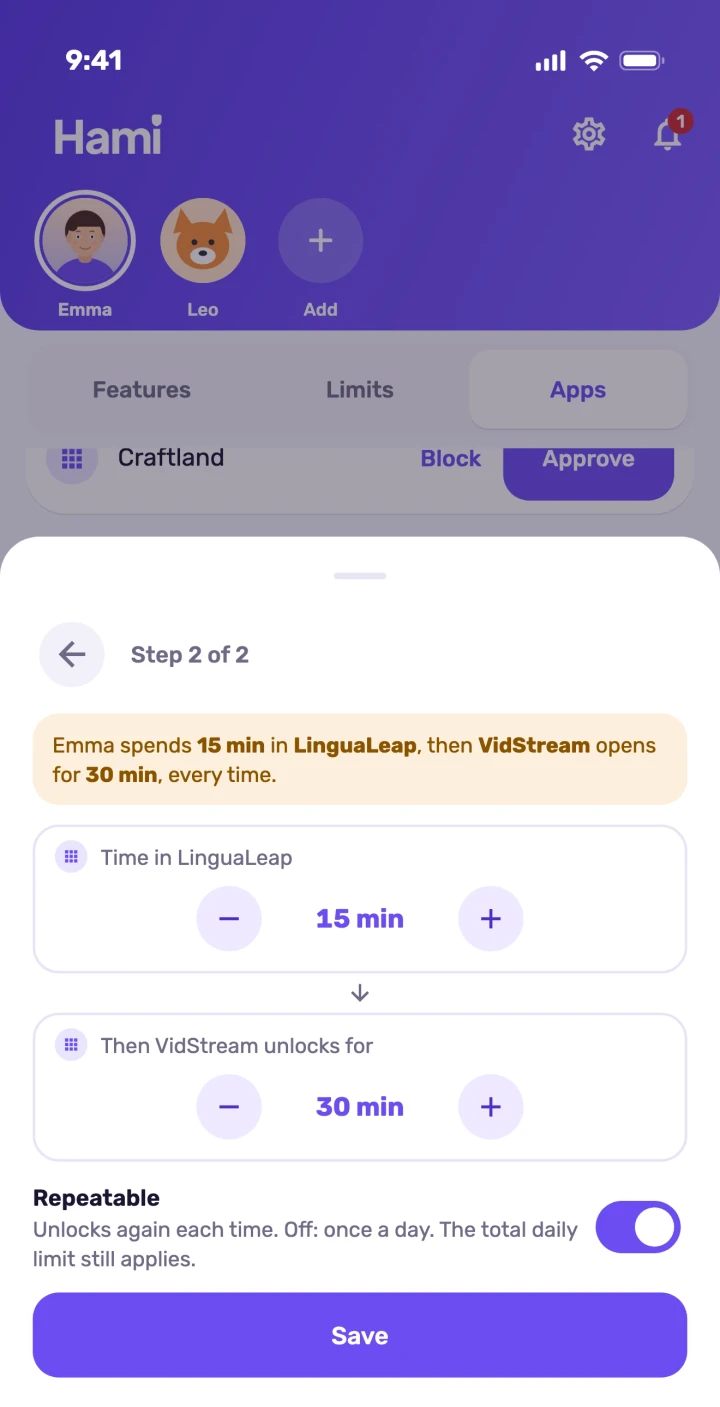
- Set the time in the earning app and the time the reward app opens for.
- Turn on Repeatable if you want: it unlocks again each time. Off means once a day.
- Check the summary sentence ("Ali spends 20 min in Reading, then Game opens for 30 min, every time") and tap Save.
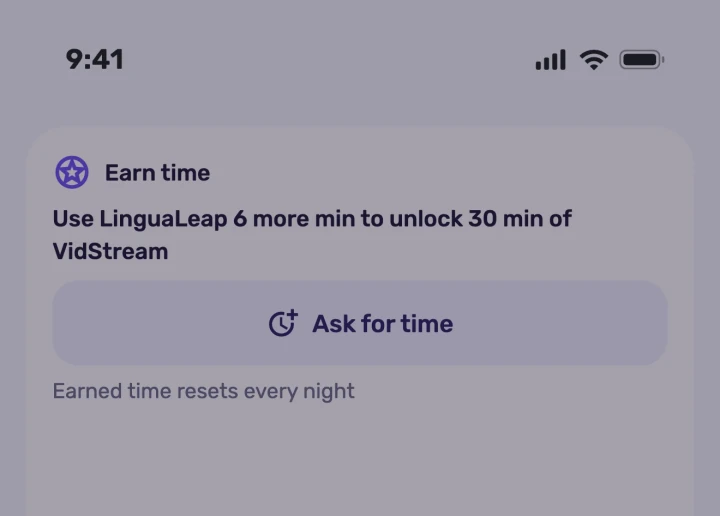
On the child's phone, Hami Kids shows the Earned time card: how much was earned, how much is left. Earned time resets every night. If the child leaves the earning app open without touching the screen, earning pauses and the card asks them to tap to continue.
iPhone: apps are chosen on the child's phone
Apple only lets apps be chosen on the iPhone itself. It takes about a minute:
- Take your child's iPhone and open Hami Kids.
- Tap the Parent button at the top (the lock icon) and enter your parent PIN.
- Parent settings opens. Under "App rules on this iPhone", tap Choose an app to add a rule, tick the app in Apple's picker (a category works for a time limit) and confirm.
- Tap the app. In the rule sheet choose Allow, Time limit, Conditional time or Block. For a time limit, set the amount in the same sheet and tap Save.
- For conditional time, choose Conditional time and tap Continue, pick the earning app in Apple's picker ("App to use first"), set the minutes, turn on Repeatable if you want, and tap Save. Conditional time takes exactly one app; a category will not do.
- The iPhone applies the rule right away. Hami on your own phone updates with the next sync, usually within a few minutes.
Worth knowing: Apple keeps app names on the iPhone, so Hami sees only how many apps and categories were chosen. The iPhone counts time in 5-minute steps and cannot tell whether an open app is being used. There is one conditional time rule per iPhone: one earning app, one reward app. For all iPhone differences, see What parental controls can do on an iPhone.
What the child sees
A child who tries to open the app after the time is up, or before the condition is met, sees a lock screen that gives the reason and can send you a request for more time. When the condition is met, a "+30 min unlocked" notification arrives, and a "2 minutes left" warning near the end. On an iPhone the lock screen can keep showing an earlier reason until the app is restarted; what is locked is always correct.
Removing a rule
Tap the same app and choose Remove rule. On an iPhone, remove the rule from the parent settings on the child's phone.
More
How much time makes sense for which app: App time limits for YouTube and games. The thinking behind conditional time and the settings that work: Conditional time. If you have not set up yet, Set up Hami in 5 minutes.
Last updated 2026-11-25