


App limits
App time limits: how to give YouTube or a game its own daily allowance
Hami Team6 min read
 Hami Team7 min read
To block adult websites on your child's phone, you open that child's Rules in Hami and turn on Web protection. On Android, Hami Kids sets up a DNS filter that routes the phone's domain lookups through a family-safe resolver and, if you want, closes categories such as gambling or dating. On an iPhone, Apple's own adult content filter takes over. On both platforms you can add sites you want blocked or always allowed. No filter catches everything, so Hami says plainly what it does and what it cannot do.
| Web protection | Android | iPhone |
|---|---|---|
| Adult sites closed | Yes, through a DNS filter | Yes, through Apple's adult content filter |
| Your own blocked and allowed sites | Yes | Yes |
| Categories (gambling, dating and others) | Yes | No |
| Safe Search on Google, YouTube, Bing, DuckDuckGo | Yes, best effort | No |
| Count of blocked sites | Yes | No |
| Optional site history (domains only, 30 days) | Yes, child is told | No |
The differences below come from what each platform allows. Neither is a hidden feature: Hami states them on the screen where you turn protection on.
A web filter can do three things: close known adult sites, close or open sites you choose, and force safe search on search engines. There are things it cannot do: it cannot filter content inside social media apps, it may not recognise a brand-new site on day one, and it does nothing on a friend's phone.
That makes web protection the most useful layer between about 8 and 13: it cuts accidental encounters a great deal. With teenagers it is a support alongside the conversation, not a solution on its own.
Hami Kids uses Android's VPN permission for domain lookups only. When the phone wants to reach a site, it first asks "where is this address?"; Hami forwards that question, encrypted, to a family-safe DNS resolver (Cloudflare Families) and withholds the answer for adult addresses. The page does not load. The traffic itself does not pass through Hami, only the address question. The child reads what the permission is for in Hami Kids when granting it.
On Android, four things come on top:
On an iPhone, Hami uses the web filter inside Apple's Screen Time infrastructure. When you turn web protection on, Apple's adult content filter takes effect on the child's iPhone; sites on your block list never open, and sites on your allow list open even with the filter on.
What is missing: category selection (Apple's filter has no categories), Safe Search enforcement, a count of blocked sites and site history. iPhone does not let apps see which sites a child visits. Hami says so on the iPhone screen rather than promising it "soon". Coverage also depends on browser behaviour; Hami states what has been verified in Safari and makes no promise for every app.
For the full platform list, see What parental controls can do on an iPhone.
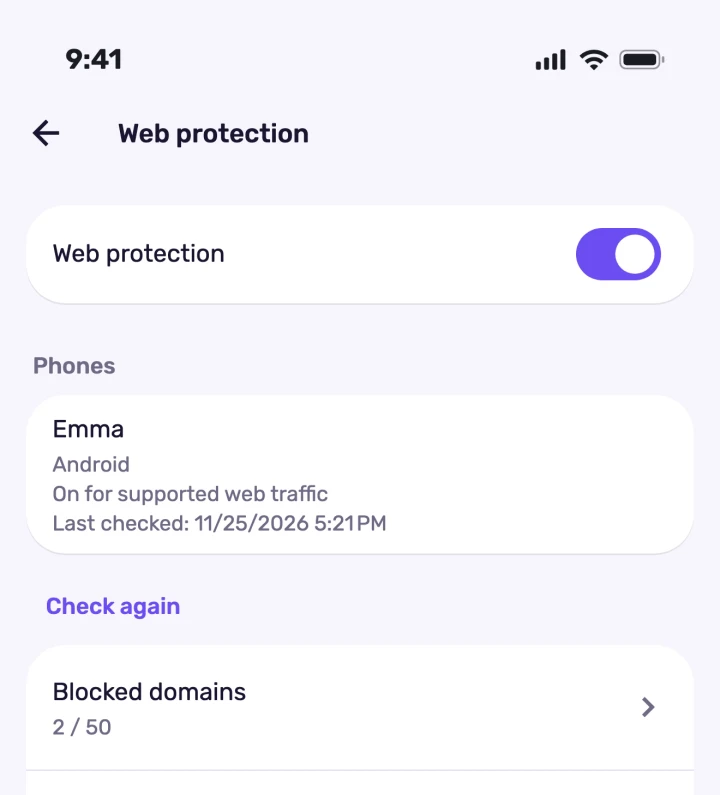
On both platforms you keep two lists. Blocked domains: sites you do not want even if no category catches them. Allowed sites: sites the filter closed by mistake, or ones needed for homework. When you add a domain, its subdomains are covered too; "example.com" also covers "games.example.com".
One small detail: on Android, a site on your allow list bypasses not only the adult filter but the malware filter as well, so keep the allow list to sites you genuinely know. And a site cannot be on both lists at once.
Honesty is required here: a determined fourteen-year-old can find ways around a DNS filter in ten minutes online. On Android, a strict Private DNS setting, another VPN app or an app with its own DNS server built in can step outside Hami's filter. Hami does not change Android settings for you; instead it shows you the state: "Strict Private DNS may bypass protection", "Another VPN may conflict". When protection is lost, you get a notification.
When the resolver cannot be reached, Hami chooses to stay closed rather than open: unresolved addresses stay blocked, the child sees why on screen, and you can pause protection temporarily if you wish. That is occasionally annoying, but better than "the filter went down and everything opened".
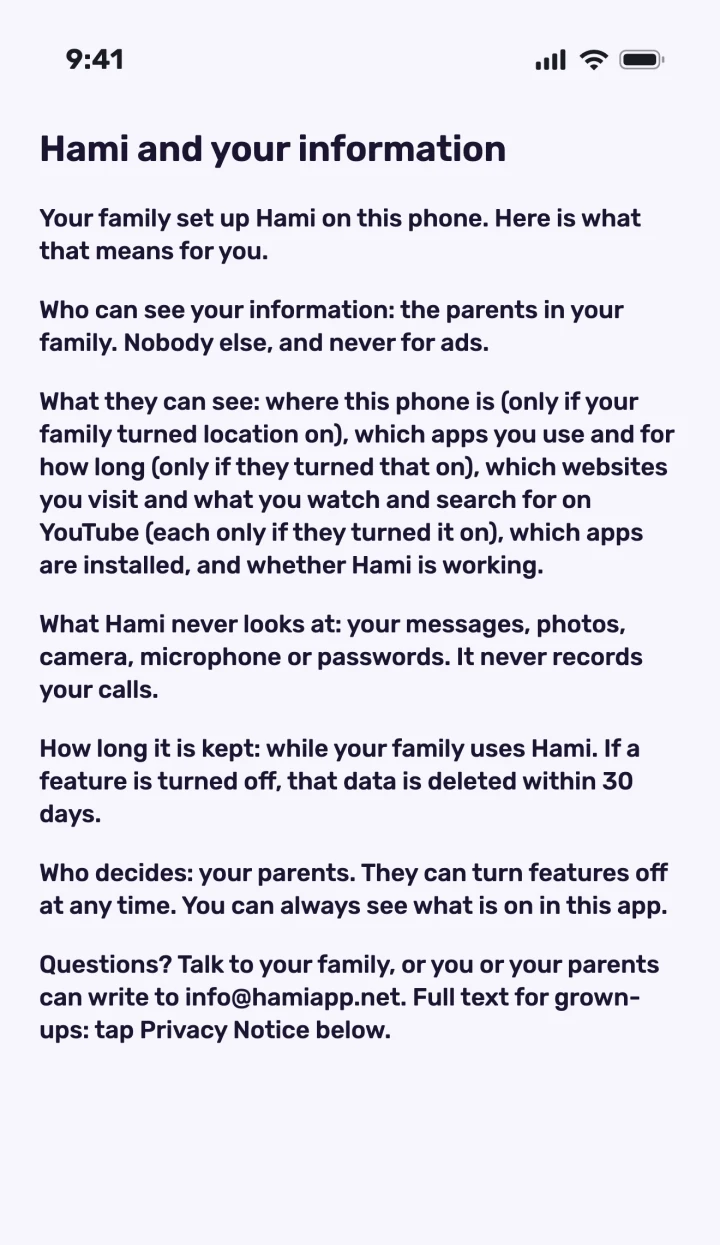
Turn web protection on, watch the count of blocked sites for a week, and add any wrongly blocked site to the allow list. The real work is a conversation: tell your child what the filter does, what it cannot do, and that they can come to you if they run into something upsetting. Why Hami tells the child everything openly is the subject of Transparent parental control versus secret monitoring.
In Hami, open your child's Rules and turn on Web protection. On Android, Hami Kids sets up a DNS filter that routes domain lookups through a family-safe resolver; on an iPhone, Apple's adult content filter takes over. On both you can add your own blocked and allowed sites.
No. On an iPhone you get Apple's filter plus your own lists; there are no categories, no Safe Search, no count of blocked sites and no site history. Those are Android-only.
Not by default. On Android, if you separately turn on Site history, only the domain names of visited sites are listed for 30 days, never page content. Your child sees in Hami Kids that it is on. There is no site history on iPhone.
No. Adult filters catch known sites and can miss new or unclassified ones. On Android, strict Private DNS, another VPN or apps with their own DNS can bypass the filter; Hami tells you when it notices. A filter sits alongside the conversation with your child, not in place of it.
App limits
Hami Team6 min read

Transparency & trust
Hami Team7 min read

iPhone
Hami Team5 min read
Set it up in about five minutes. Your child can always see which rules are on.