
 Hami Team


Screen time
How to set a daily screen time limit on your child's phone (Android and iPhone)
Hami Team7 min read
When the daily limit runs out or a locked app is needed, your child can send you a request from Hami Kids. It arrives on your phone as a notification and a card on the Requests screen; you answer with one tap, and your child is told the answer. This guide follows a request from start to finish, covers requests for new apps and for earned time, and explains why a request can reach an iPhone later than an Android phone.
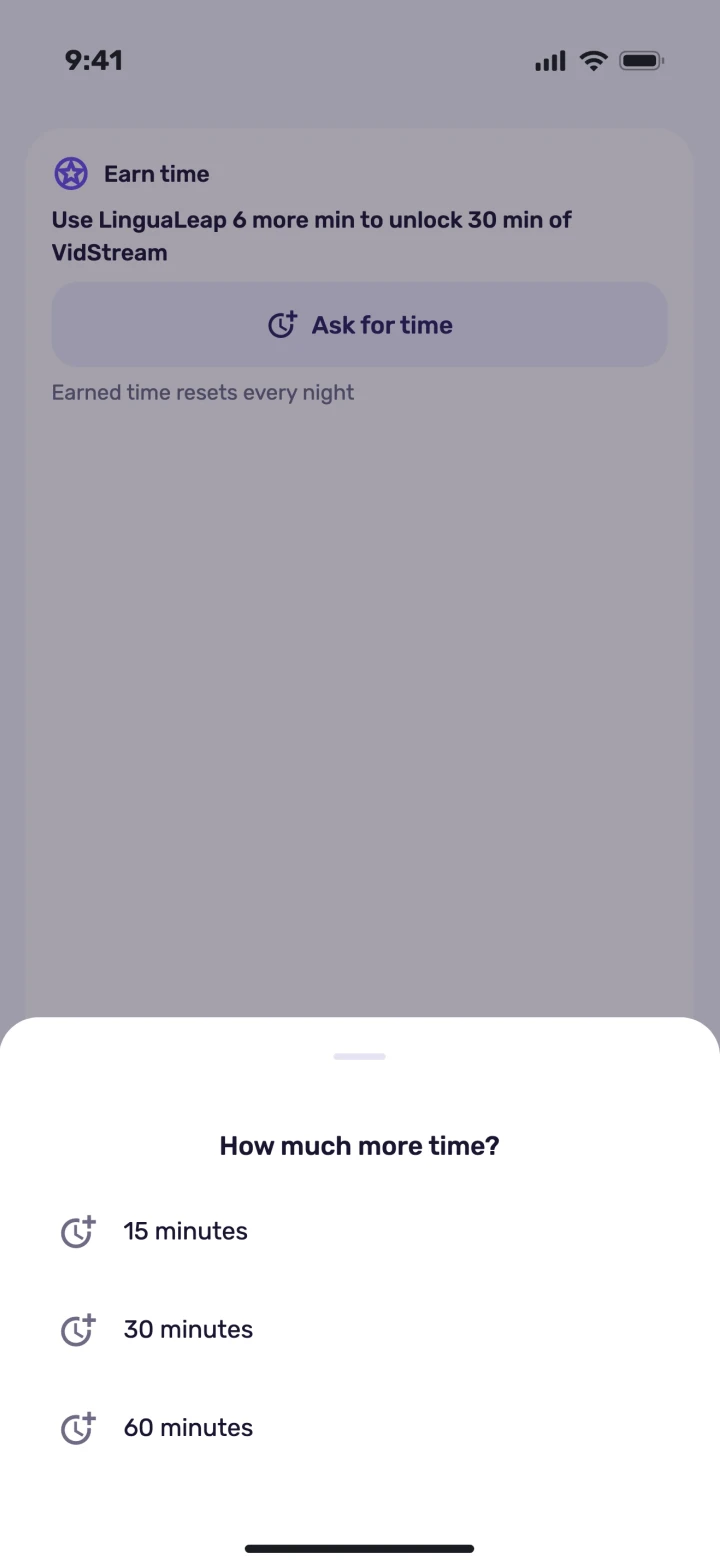
Hami Kids shows a ring on its home screen with the time left today. When time reaches zero, apps lock and the lock screen says why: for example the daily limit. The child is not left staring at a blank phone; the screen names the rule and offers Ask for more time. The same button sits on the Hami Kids home screen next to SOS.
Hami Kids also makes sure the rule is never a mystery: the child can open the app at any time and read which rules are on. That is part of the idea behind a transparent tool, and it is why requests tend to be calmer than silent lockouts.
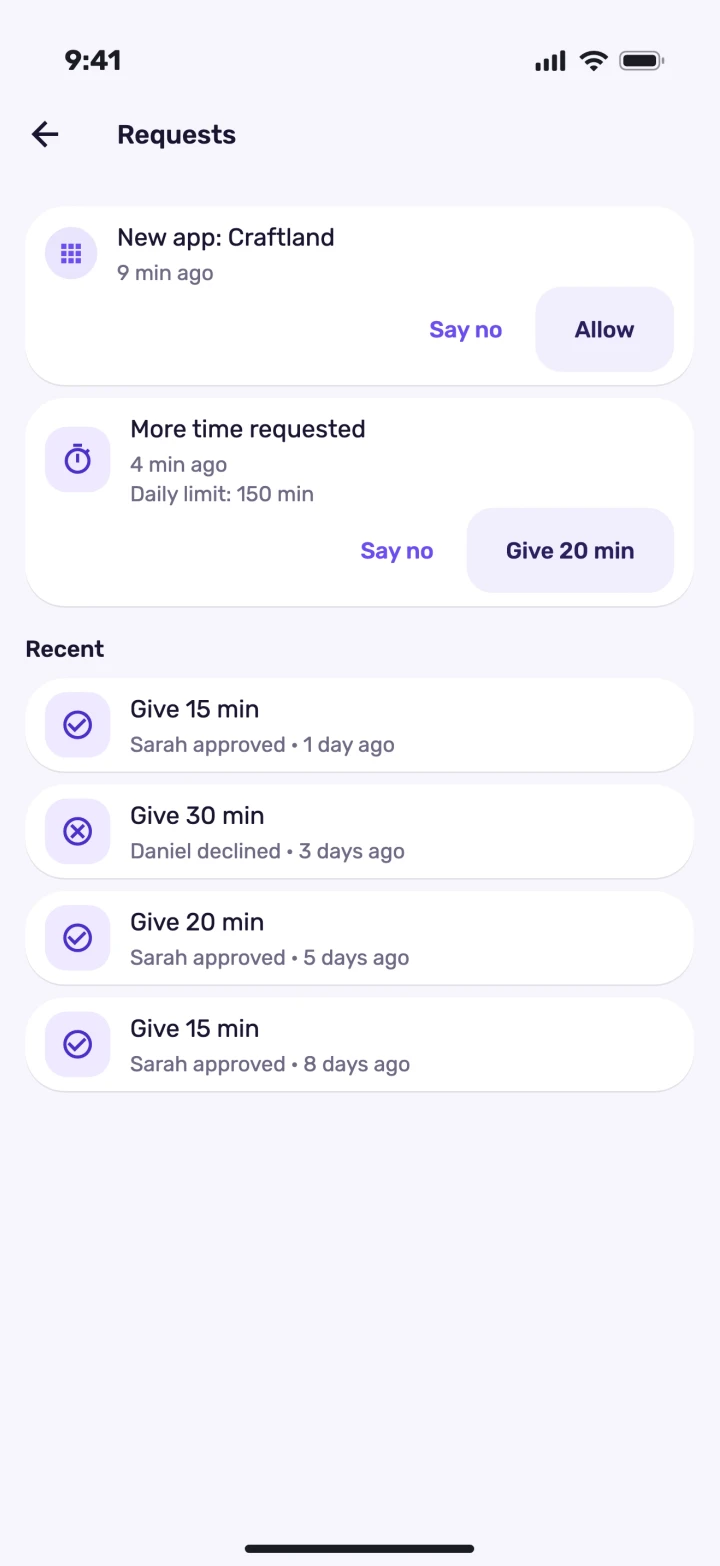
You receive a notification. The Requests screen shows each request as a card with the child's name, how long ago it came and, for time requests, the day's limit next to it. Two buttons:
Under Recent you see the history: who answered, whether they approved or declined, and when. In a family with two parents the list shows which parent answered, for example "Sarah approved" or "Daniel declined". The child receives a notification either way: "Your family said yes, today's limit is now …" or "Your family said no this time".
Added time applies to today only. The day renews at midnight and the limit returns to what you set.
No. Requests are the child's way in; they are not the only way. From your home screen you can Add time yourself, pause the phone for a set time or lock it instantly. Many families use all of it: requests for the ordinary "ten more minutes", Pause for homework, Lock for dinner. See the daily limit guide for when to use which.
On Android, Hami can ask you to approve each new app. When your child installs or opens something new, the request arrives as "New app: name" with Allow and Say no. If you say no, the app stays blocked. If you allow it, it opens and counts toward the daily time. This is an Android feature: Apple's Screen Time API does not allow Hami to hold back new apps on an iPhone.
You can also approve a new app request in advance by setting the rule yourself on the Rules screen.
If you set up conditional time, the child's home screen shows an earning card: for example "Use a learning app 6 more min to unlock 30 min of a game". The child can tap Ask for time on that card when they feel they have done enough. You see "asks for time in the app" and choose how much earned time to give. The earned time resets every night.
On an iPhone, the child's request reaches your phone with the next sync, so it can take a few minutes, and an older reason can sit on the lock screen until the app is reopened. What is locked is always correct; only the explanation or the request can lag. The reasons are in Apple's rules, which apply to every app using the Screen Time API, and are described in what parental controls can do on an iPhone.
If you are the parent of an iPhone child, set expectations: "I will answer within the day, not in a second." A child who knows the answer time asks less often than one who is guessing.
A request system works when the answers are predictable. A few habits help:
Written into a family agreement, these habits become a clause rather than a mood.
A request tells the family only what the child chose to ask for: how much time and, for new apps, the app name. Hami never reads messages and never uses the microphone. The family's parents see requests; nobody else does.
Open the Requests screen once so you know where it is, turn on notifications for your phone, and tell your child how fast you will answer. If you have not set a limit yet, start with the daily limit.
Yes. In Hami Kids the child picks 15, 30 or 60 minutes, and the request arrives on your phone with that amount and the day's limit next to it. You approve it or say no.
The request expires after a while. Your child sees that the family did not answer in time and can ask again. Until you answer, a second request is not needed; Hami Kids says that the family will answer soon.
Yes. From the home screen you can add minutes, pause the phone or lock it. A request is only the child's way of starting that conversation.
Yes, with one difference: on an iPhone the request reaches you with the next sync, so it can take a few minutes. Approvals and lock screens are accurate; only the arrival of the request can lag.
Screen time
Hami Team7 min read

Transparency & trust
Hami Team8 min read

App limits
Hami Team6 min read
Set it up in about five minutes. Your child can always see which rules are on.