


Screen time
How to set a daily screen time limit on your child's phone (Android and iPhone)
Hami Team7 min read
 Hami Team7 min read
Hami's weekly report arrives every Monday as a short series of pages about last week: how much time, on what, which limits were hit, what was asked and what happened that needed your attention. Used well, it is the start of a conversation, not a verdict. This guide shows where to find it, how to read each page, which three questions to ask before you change a rule and what the report deliberately never shows.
Tap the weekly report card on the home screen (This week, then See full report). A new report is ready on Monday. Before the first full week has passed, the report says "Your first report arrives on Monday". You can choose a week and open earlier ones, and you can share a page with another parent with the Share button.
The report is a series of full-screen pages you tap through, with a progress bar at the top.
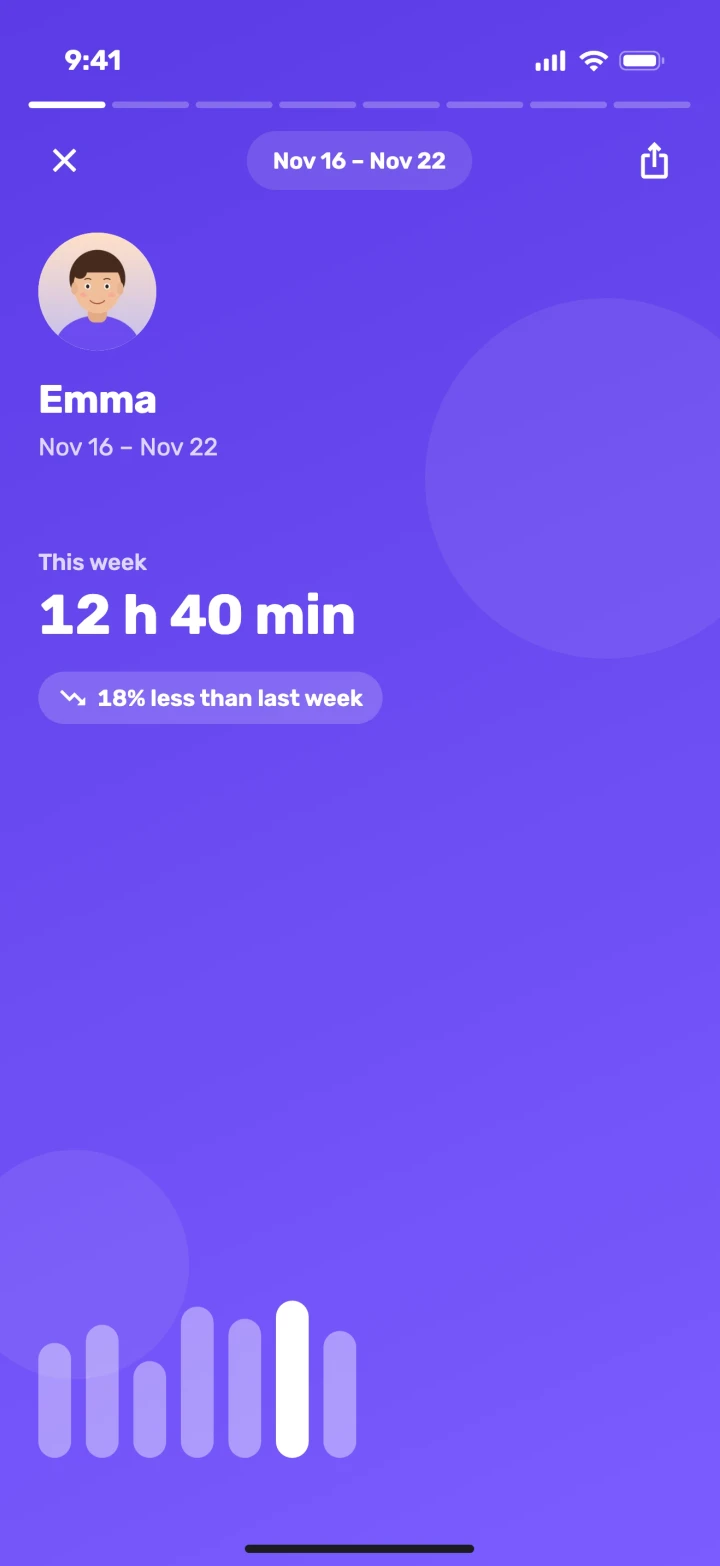
The cover. The week's total and how it compares to last week: "18% less than last week", "About the same", "First week with Hami". One week is a single data point; look at the trend over several weeks before you worry.
Day by day. A bar for each day and the busiest day. Compare weekdays with weekends and check whether the weekend is much heavier. A weekend that is double a weekday is normal for many families; a weekday that is as high as a Saturday deserves a question.
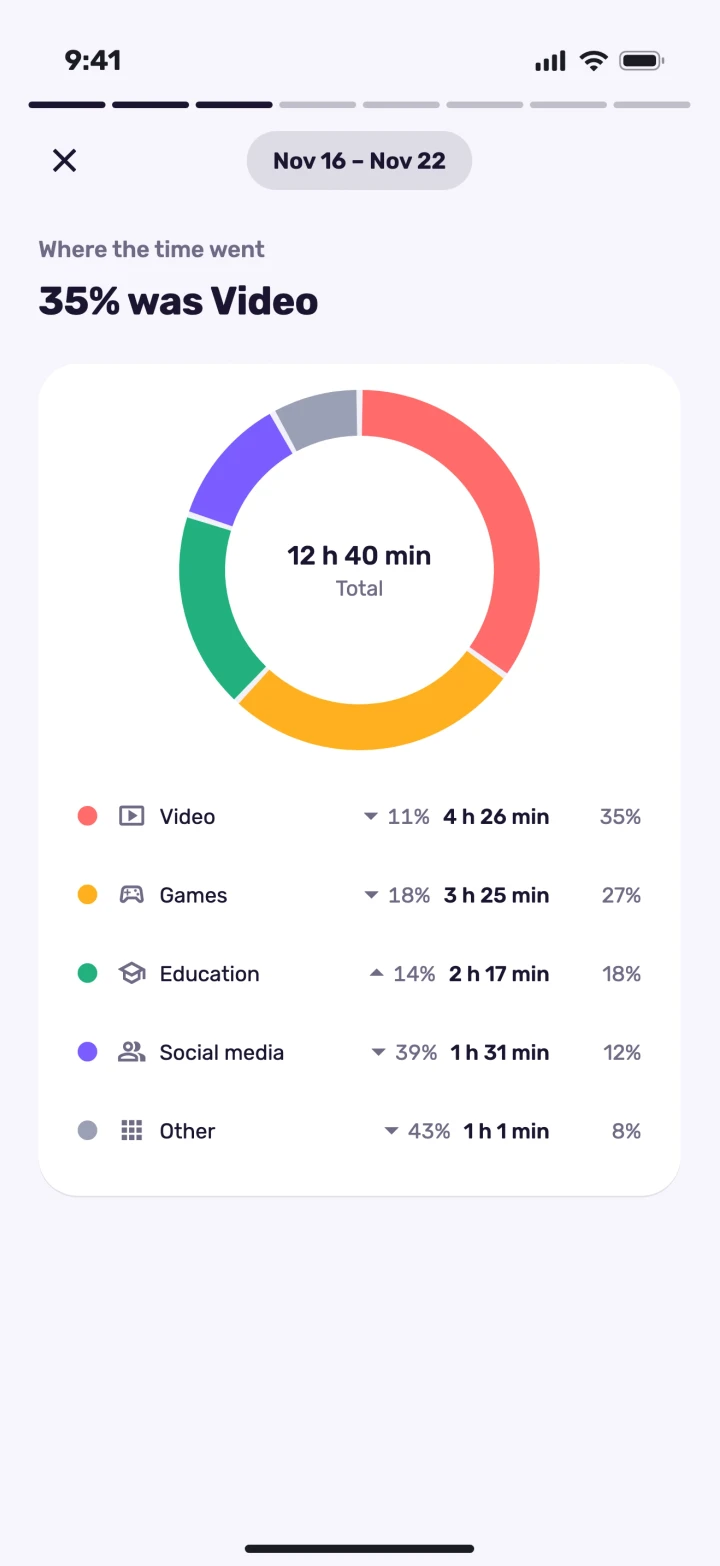
Where the time went. The time split by category: video, games, education, social media and other, with the change from last week for each. The headline is a sentence such as "35% was Video". If education is up and games are down, that is progress; if "other" is a large share, look at which apps are in it.
Top apps. The most-used apps, with "#1 two weeks in a row" or "New #1" tags. A new number one is worth asking about.
Limits and requests. On how many days the daily limit was reached, how many times your child asked for more time, how many requests you approved or declined, and how much extra and earned time was given. This page tells you whether the rule fits.
New on the phone. New apps this week, with whether you allowed or blocked them.
Safety. Either "All calm this week", or what happened: SOS alerts, safe zone arrivals and departures, blocked websites, protection alerts, and the phone being offline.
Your moves. Suggestions you can apply with one tap, such as adding minutes to the daily limit, limiting the most-used app, using the suggested limit for the child's age or approving new apps first. Nothing changes until you tap Apply.
Start with what is going well: "Your learning time went up, nice." Then pick one number and ask a question instead of stating a conclusion: "Saturday was your longest day. What happened?" Avoid reading out totals as an accusation. A child who sees the report as a verdict starts working around it; a child who sees it as a shared picture starts adjusting.
Use the age comparison carefully. Where the report compares the daily average with the amount suggested for the child's age, it is a reference point, not a target. Look at screen time by age for why a single number stops working as children grow.
If the report shows the limit being hit every day with many requests, the ideas in how requests work and the daily limit guide help you decide whether to raise it or keep it.
The report is built from time and events, not from what your child sees or says.
Apple's Screen Time API shares the iPhone's total time only, so an iPhone child's report cover says "iPhone shares total time only", and the category and top-app pages are limited accordingly. Usage data can arrive in steps and sometimes late, because iOS decides when background work runs. Per-app detail is visible on the child's iPhone under Settings, Screen Time. These limits come from Apple and apply to every parental control app; see what parental controls can do on an iPhone.
On Monday, open the report together with your child if they are old enough, or alone first if they are small. Pick one good thing and one question. Change at most one rule, and look again next Monday.
On Monday. Until the first full week has passed, the report says that your first report arrives on Monday. You can also open earlier weeks and choose a week from the report.
No. It shows time, which apps and categories, limits reached, requests, new apps and safety events. It never shows message content or pages visited. Site history and YouTube history are separate, optional features on Android that the child is told about.
The last page, 'Your moves', can offer things like adding minutes to the daily limit, limiting the most-used app, using the suggested limit for your child's age or approving new apps first. Each has an Apply button, and nothing changes until you tap it.
Apple's Screen Time API shares the iPhone's total time only. The report says 'iPhone shares total time only'. Per-app detail is on the child's iPhone under Settings, Screen Time.
Screen time
Hami Team7 min read

Screen time
Hami Team7 min read

Screen time
Hami Team8 min read
Set it up in about five minutes. Your child can always see which rules are on.