
Your child's first phone: a setup checklist for parents
7 min read
Setting up a child's first phone goes in this order: create an account for the child first (a child Apple Account in Family Sharing on iPhone, a child Google account on Android), set up the phone together, then put three basic rules in place: a bedtime, a daily screen time limit and an adult website filter. Add location and safe zones after talking it through with your child, turn on removal protection, and invite the second parent. The whole thing fits in an afternoon.
This list starts before the phone comes out of the box, because the hardest decisions are there.
Before buying the phone
Does it need to be a smartphone? For letting you know they got off the bus, a basic phone or a watch is enough for most 8- to 10-year-olds. A smartphone brings the whole internet into a child's life. Waiting a year or two despite the "everyone has one" pressure rarely leads to regret; handing one over early sometimes does.
Who needs to agree? Most first-phone disputes break out between the parents: one relaxed, the other strict. Agree on the same three rules before buying. In Hami both parents manage the same family, so the rules live in one place.
Which platform? The child's phone can be an iPhone or an Android, and so can yours. But parental control works differently on the two: Android gives you per-app detail, category locks, new-app approval and site history; Apple does not allow some of these on iPhone, and the daily limit there counts total screen time. A second-hand Android is often the more manageable first phone. If you are buying an iPhone, read What parental controls can do on an iPhone first.
Setup day
- Create a child account. On iPhone, create a child Apple Account from Family Sharing; this also lets Hami Kids protect itself from removal. On Android, create a Google account with the child's age.
- Set the phone up together. Let the child choose the lock screen code, but know it yourself. A code of their own gives a sense of autonomy; your knowing it is safety.
- Lock down store purchases. On both platforms, require a password or parent approval for in-app purchases.
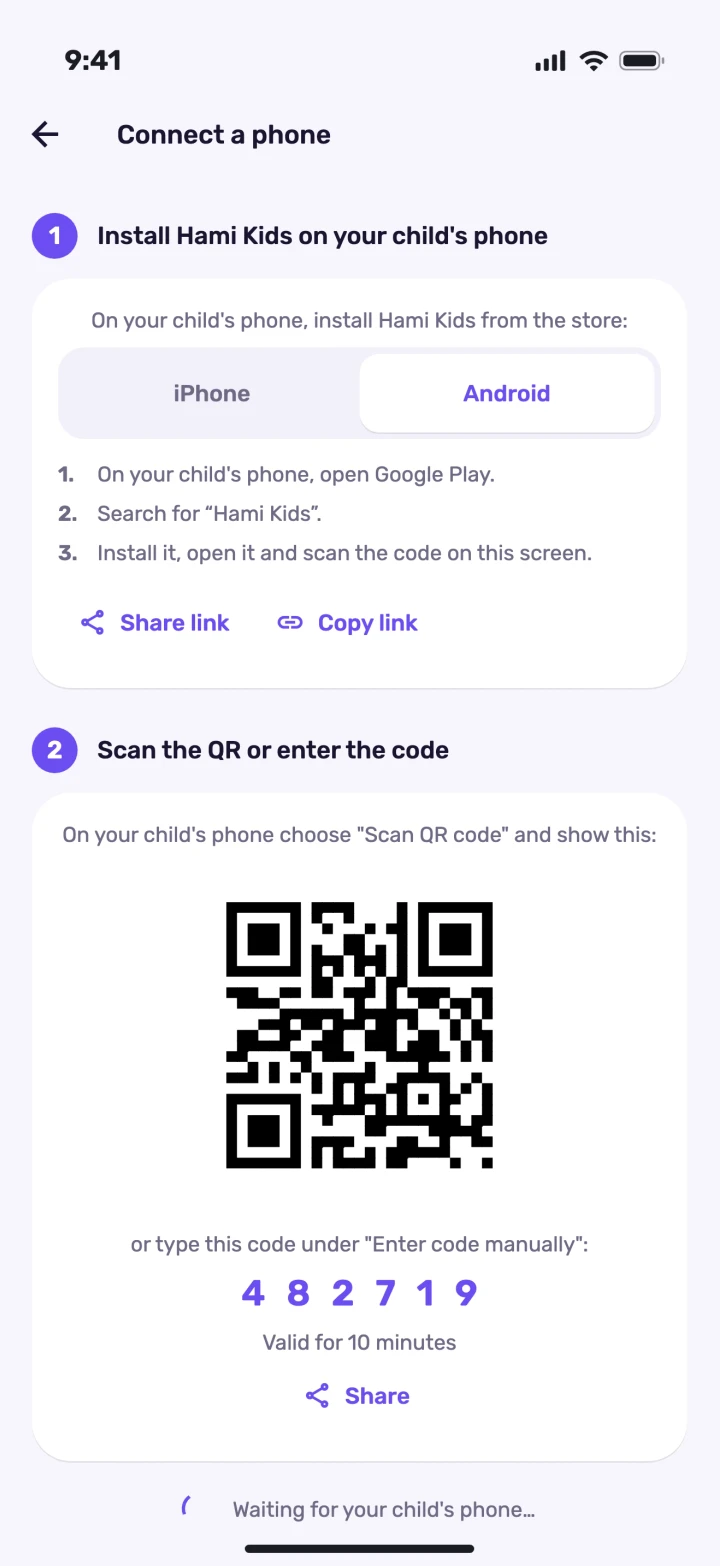
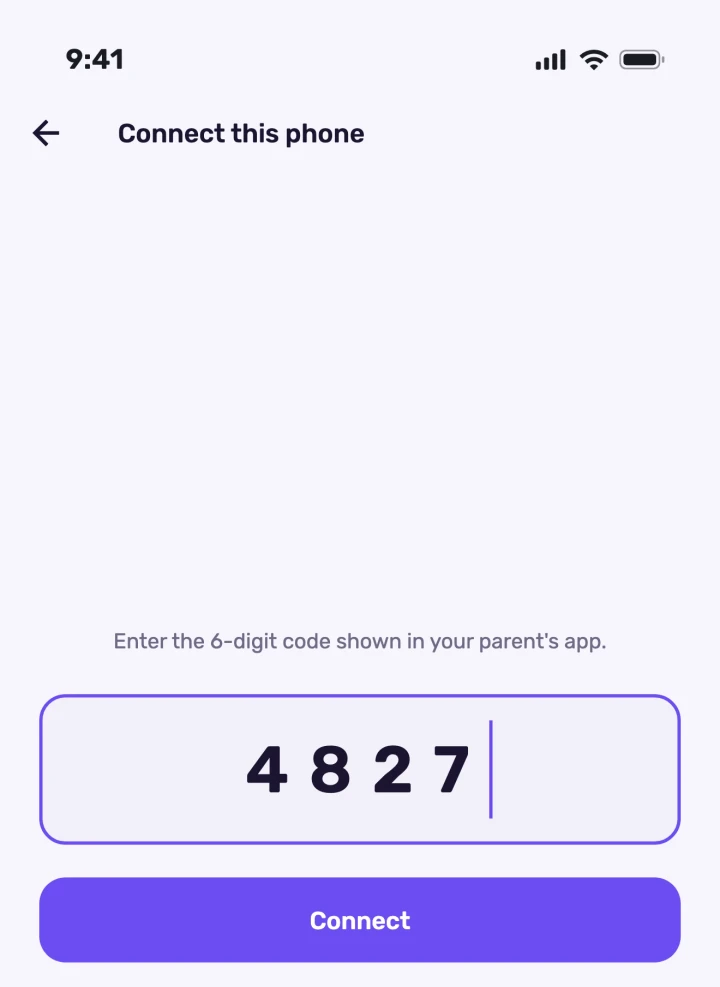
- Install Hami. Hami on your own phone, Hami Kids on the child's. Enter the 6-digit code shown in Hami on the child's phone. The phone asks only for the permissions your chosen features need and explains each one to the child. Do this step together without fail; the child reads "nothing is hidden from you" on the first screen. Step by step: Set up Hami in 5 minutes.
- Set a parent PIN. It unlocks the child's phone and prevents Hami Kids from being removed. Choose one the child cannot guess.
Three rules for the first week
Do not turn everything on at once; the child is crushed under the rules and you deal with every notification. For the first week:
- Bedtime. A start between 8.30 and 9.30 pm is common for school age. Hami suggests a time based on the child's age. You can leave weekend nights out. Details.
- Daily screen time limit. Start near what they really use today and step down over a few weeks. On iPhone it counts total time. Details.
- Web protection. Closes adult sites; on Android there is Safe Search and categories too. Details.
On Android, also turn on new-app approval: when the child installs an app, it waits until you approve. The number of apps installed in the first month of a first phone is very high; this rule is the easiest way to see what is coming in.
Week two: location and safe zones
Turn location on after talking with your child, not on setup day. "I can see where you are; it's not to control you, it's to reach you" needs to be said before location goes on, not after. The child sees in Hami Kids that location is on.
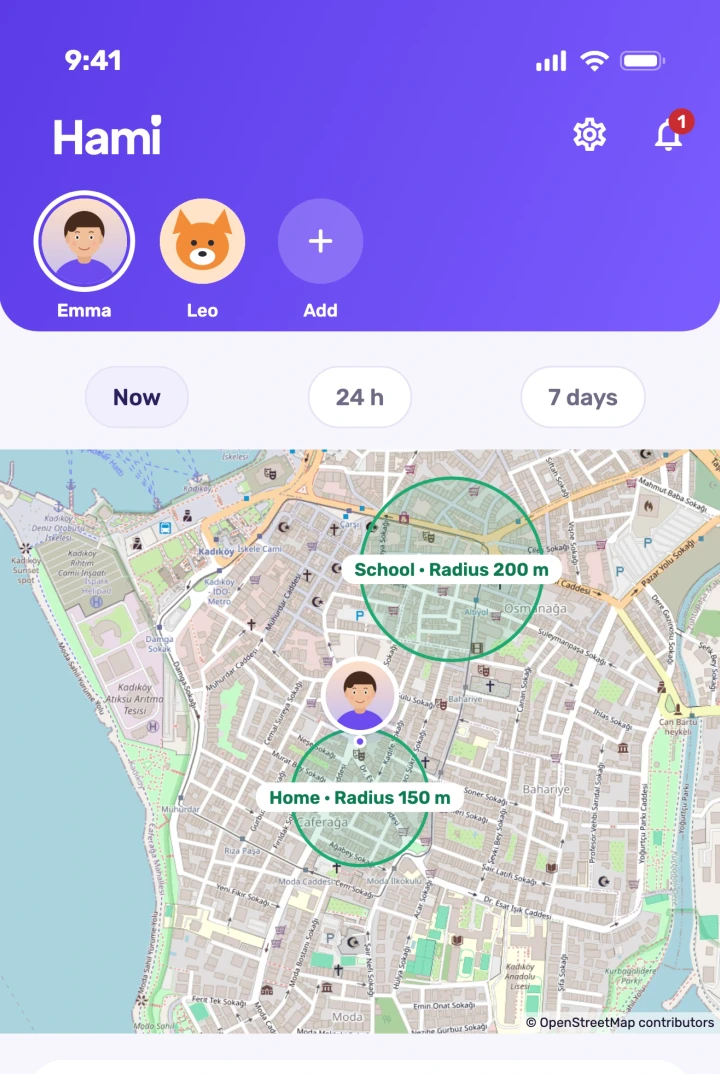
Then add the school as the first safe zone with "notify on leaving" ticked, and home with "notify on arrival". Show the child the SOS button; it helps them see location as a tool in their hands too. Location and safe zones is the long version of this section.
Two steps that get forgotten
Removal protection. On Android, Hami Kids is protected against removal; uninstalling needs the parent PIN and you are notified if the child tries to turn protection off. On iPhone it depends on the child Apple Account; without Family Sharing, Hami suggests a Screen Time passcode step. Guide.
The second parent. In Hami, go to Settings › Family, generate an invite code and send it to your partner; they sign up for Hami and enter the code. Both phones see the same family, and requests reach both of you. Guide.
At the end of the first month
The weekly report arrives every Monday: total screen time, the category that took the most time, the days the limit was reached, how many times more time was requested, newly installed apps. At the end of the first month, sit down with your child and these reports. If the limit is reached every day it may be too low; if never, perhaps unnecessary. If one app takes most of the time, give it a limit of its own or tie it to a learning app with conditional time.
Rules loosening as the child grows is normal; staying fixed is not.
The checklist
- [ ] A child account (Apple Account in Family Sharing / child Google account)
- [ ] Lock screen code: the child chooses, you know it
- [ ] Purchases password-protected
- [ ] Hami + Hami Kids installed, paired together
- [ ] Parent PIN set
- [ ] Bedtime, daily limit, web protection on
- [ ] (Android) New-app approval on
- [ ] Location and the first safe zone, discussed with the child
- [ ] Removal protection (Screen Time passcode step on iPhone) done
- [ ] Second parent invited
- [ ] A date set to look at the report together at the end of month one
Next step
Read this list once with your partner before the phone comes out of the box and agree on the three rules. The rest is a five-minute setup and a few weeks of settling in. To see what Hami does on each platform, look at the table on the home page.
Frequently asked questions
At what age should a child get a first phone?
There is no single right age. In most families the first phone arrives between 10 and 13, usually when the child starts travelling to school alone. The question should be 'what for' rather than 'how old': a basic phone may be enough just to stay in touch.
Which rules should go on a first phone?
Three are enough for the first week: a bedtime, a daily screen time limit and an adult website filter. On Android, new-app approval is worth turning on as well. Add location and safe zones after talking it through with your child.
Which account should be on the child's phone?
On an iPhone, a child Apple Account inside Family Sharing; on Android, a Google account created for the child's age. Child accounts enforce age limits and let parental control apps work properly.
How long does Hami take to set up?
About five minutes: install Hami on your phone and Hami Kids on the child's, enter the 6-digit code and choose the rules. Doing the second step together with your child is best.
Keep reading
- How to set a daily screen time limit on your child's phone (Android and iPhone)
What a daily screen time limit does and does not do, how it works on Android and iPhone, what the child sees when time runs out, and how requests for more time are handled.
- App time limits: how to give YouTube or a game its own daily allowance
When a per-app limit makes more sense than a total, how to set one in Hami on Android and on iPhone, and how it differs from blocking and category locks.
- Conditional time: let minutes in a reading app turn into game time
With a conditional time rule the child spends X minutes in a learning app first, then the game you chose opens for Y minutes. The logic, setup on Android and iPhone, and the pitfalls.
- Set up Hami in 5 minutes
How to set up Hami in about five minutes: install on your phone, install Hami Kids on your child’s phone, enter the code and choose your rules.
- Protecting Hami Kids from removal (Android and iPhone)
How to stop Hami Kids being deleted from your child’s phone: the parent PIN and tamper alert on Android; Family Sharing or a Screen Time passcode with “Deleting Apps: Don’t Allow” on iPhone.
- Adding a second parent to Hami
How to add a second parent to Hami: generate an invite code under Settings › Family, your partner signs up for Hami and enters it. Both phones see the same children, rules and requests.
Download Hami
Set it up in about five minutes. Your child can always see which rules are on.