
How to set a daily screen time limit on your child's phone (Android and iPhone)
6 min read
A daily screen time limit lets your child use the phone for a set amount of time each day and locks apps when that time is up. In Hami you set the limit from your own phone; Hami Kids on your child's phone enforces it and shows the child how much is left. It works on Android and on iPhone, with one difference: on an iPhone the limit counts total screen time, because that is how Apple's rules work.
Below: what the limit does, how to set it up, what happens when it runs out, and where the two platforms differ.
What a daily limit does
Say you choose two hours. The counter starts when your child picks up the phone in the morning. Games, video, social apps all draw from the same pool. When two hours are gone, apps lock and the screen says why. At midnight the counter resets.
The limit runs independently of bedtime and school time. If bedtime starts at 9 pm, the phone goes quiet at 9 pm even if the child has not used the two hours. The rules stack, and whichever is stricter wins.
What it does not do: a daily limit does not give individual apps their own time. If you want "YouTube 30 minutes, games 45 minutes", that is a separate rule, a per-app time limit. You can run both at once.
How many hours?
There is no short answer; Screen time by age goes into detail. The practical advice: start near what your child uses today and step down over a few weeks. Hami suggests a starting point based on the child's age when you add them, and you change it as you like.
Wanting a different rule for the weekend is normal. Hami keeps one daily limit value; for a looser weekend, most families simply add bonus time that day or switch the limit off temporarily.
Setting the limit in Hami
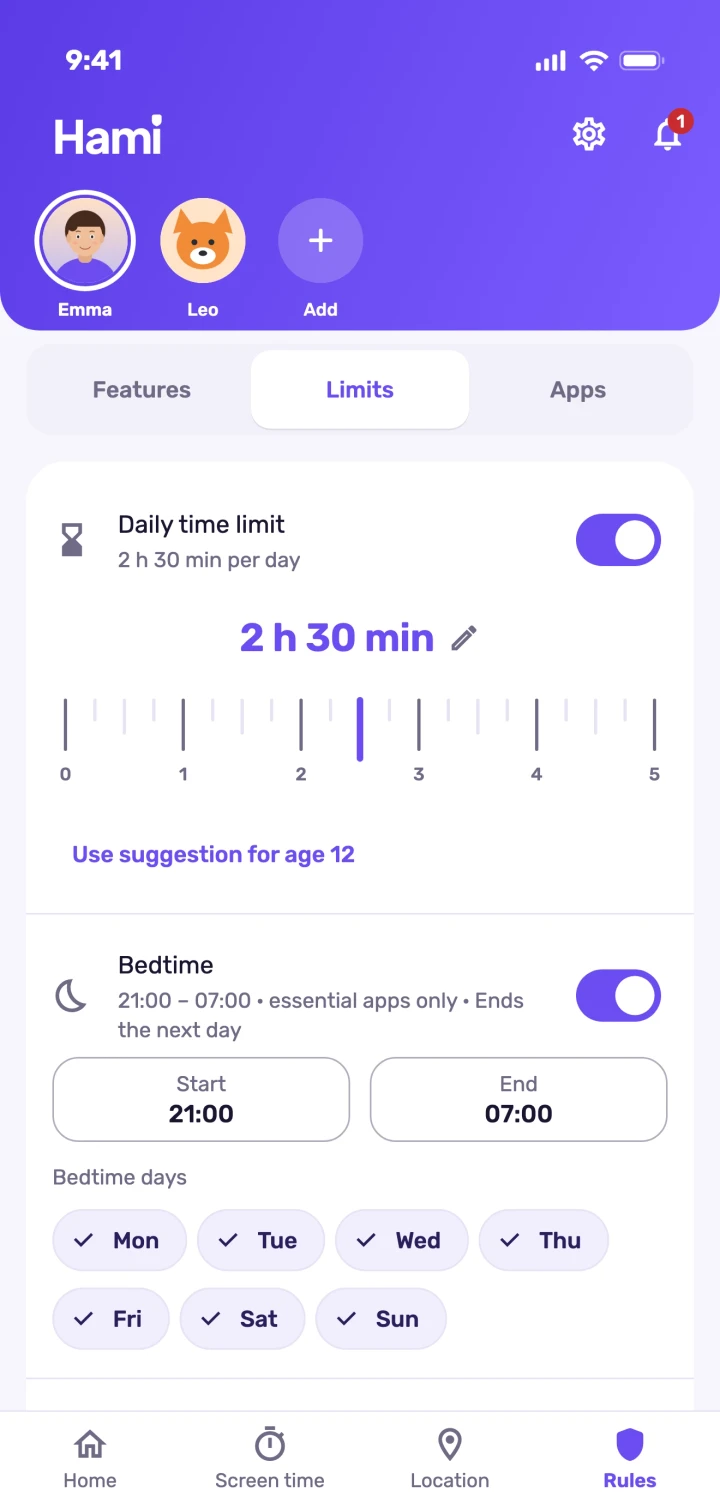
- In Hami, choose your child and open Rules.
- Turn on Daily time limit and choose the duration.
- The rule reaches the child's phone the moment you save. If the phone is offline, it applies the next time it connects.
That is all. If you selected the feature during setup, the limit may already be on; you change it from the same screen.
What the child sees when time runs out
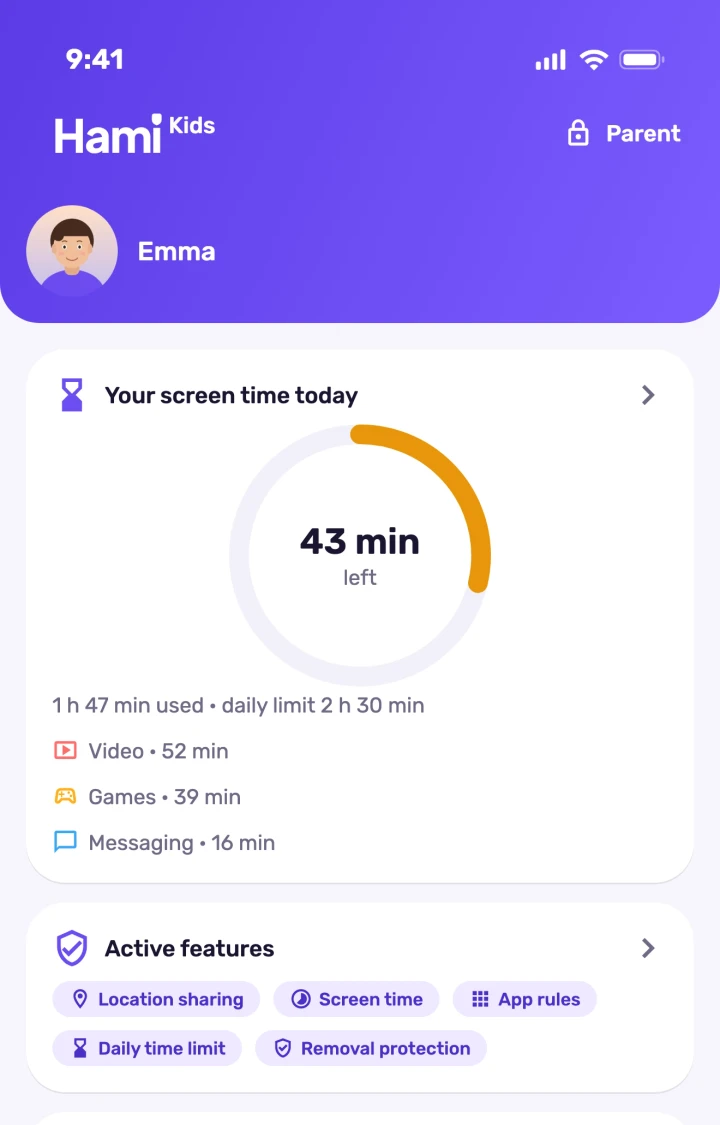
Hami Kids shows a ring on its home screen with the time left for today. When it reaches zero, apps lock and the lock screen gives "daily limit" as the reason. From there, or from Hami Kids, the child can tap Ask for more time; the request arrives on your phone as a notification. You tap Approve and choose how much to add, or decline. The child gets a "bonus time added" notification.
Even without a request you can add time from your own phone (+15 min, for example), pause the phone for a while so homework gets done, or lock it instantly.
Android versus iPhone
Android. Hami Kids can see which app is in the foreground, so the limit counts apps individually and your screen time report shows how long each app was used. Requests for more time arrive instantly.
iPhone. Apple restricts parental control apps to its Screen Time API. For the daily limit that has three consequences:
- The limit counts the iPhone's total screen time. Individual apps cannot be excluded from it.
- Usage data reaches you in 15-minute steps and sometimes late, because iOS defers background work at its own discretion. Per-app detail is visible on the child's iPhone under Settings › Screen Time.
- "Ask for more time" reaches you with the next sync, so it can take a few minutes. The lock screen can also keep showing an earlier reason until the app is reopened. What is blocked is always current.
These differences come from Apple, not from Hami, and apply to every app that uses the same API. The full list is in What parental controls can do on an iPhone.
Daily limit, pause and instant lock: which one when?
All three stop the phone, but for different jobs. The daily limit is a standing rule that runs by itself every day; it is for routine. Pause is a break for a set time: "pause 45 minutes until homework is done", after which the phone opens on its own. Instant lock lasts until you lift it: at the dinner table, at a relative's house, when a conversation needs to happen; you unlock from your phone or with the parent PIN on the child's. Reaching for pause rather than editing the rule whenever the limit does not fit the day keeps the rule consistent and the exception visible.
If the limit feels like it is not working
A few common situations:
- The child burns through the time early and asks for more every day. The limit may be low, or the time of day may be the problem. The weekly report shows which days the limit was reached and how many requests were made; start there.
- A rule change is not showing on an offline phone. Rules are stored on the phone and work offline. A new change arrives when the phone is back online.
- On an iPhone the time looks different from what you expected. Apple's count comes in 15-minute steps; the lock itself is immediate, the report lags a little.
Next step
Pick a number together with your child, turn on the daily limit under Rules in Hami, and look at the weekly report a week later. The report tells you whether the number fits this family. If you have not set Hami up yet, Set up Hami in 5 minutes is the shortest route.
Frequently asked questions
Does the phone shut down completely when the daily limit runs out?
No. Apps lock and the lock screen says why; your child can open Hami Kids and send you a request for more time. From your own phone you can add a few minutes or switch the limit off for the day.
What does the daily limit count on an iPhone?
On an iPhone the daily limit counts the phone's total screen time, because of Apple's Screen Time API. To give one app its own time, you set a time limit for that app on the child's iPhone.
Does the limit reset at midnight?
Yes, the day renews at midnight. Any bonus time you give applies to that day only.
Can my child change the limit?
No. Rules are set from your phone, and the parent settings on the child's phone are protected by a PIN. The child sees which rule is on in Hami Kids but cannot change it.
Keep reading
- Screen time by age: how much is too much for your child?
Screen time recommendations by age, why a single number stops working after age six, and a practical way to set a daily limit your family can actually keep.
- App time limits: how to give YouTube or a game its own daily allowance
When a per-app limit makes more sense than a total, how to set one in Hami on Android and on iPhone, and how it differs from blocking and category locks.
- What parental controls can do on an iPhone (and what they can't)
What a parental control app can and cannot do on an iPhone, because of Apple’s Screen Time API, and how Hami works within it.
- Set up Hami in 5 minutes
How to set up Hami in about five minutes: install on your phone, install Hami Kids on your child’s phone, enter the code and choose your rules.
Download Hami
Set it up in about five minutes. Your child can always see which rules are on.