
Seeing your child's location and safe zones without spying
6 min read
The way to see your child's location without spying is to turn location sharing on with your child's knowledge. In Hami, location only turns on after you consent in the app; Hami Kids shows the child that it is on, and on Android a persistent notification is visible as well. You see the last location and its time on a map, define safe zones, and get a notification when your child arrives at or leaves one. Your child can also send you their location with one tap of the SOS button.
The difference is not in the technology but in whether the child knows. The same map, turned on behind a child's back, is tracking; turned on with their knowledge, it is a safety net.
Why secret tracking is a bad idea
Secret location tracking usually gets found out. A twelve-year-old will sooner or later spot an app running in the background in the battery settings. From that moment the problem is no longer location, it is trust: "Without telling me?" Rebuilding that trust costs more than the fear of a lost child.
With open sharing, the child knows what you know. They do not try to hide that they went to the park after school; they text "going to the park" because they know you will see it anyway. That does not restrict the child. It makes the lie unnecessary.
What you see when location is on
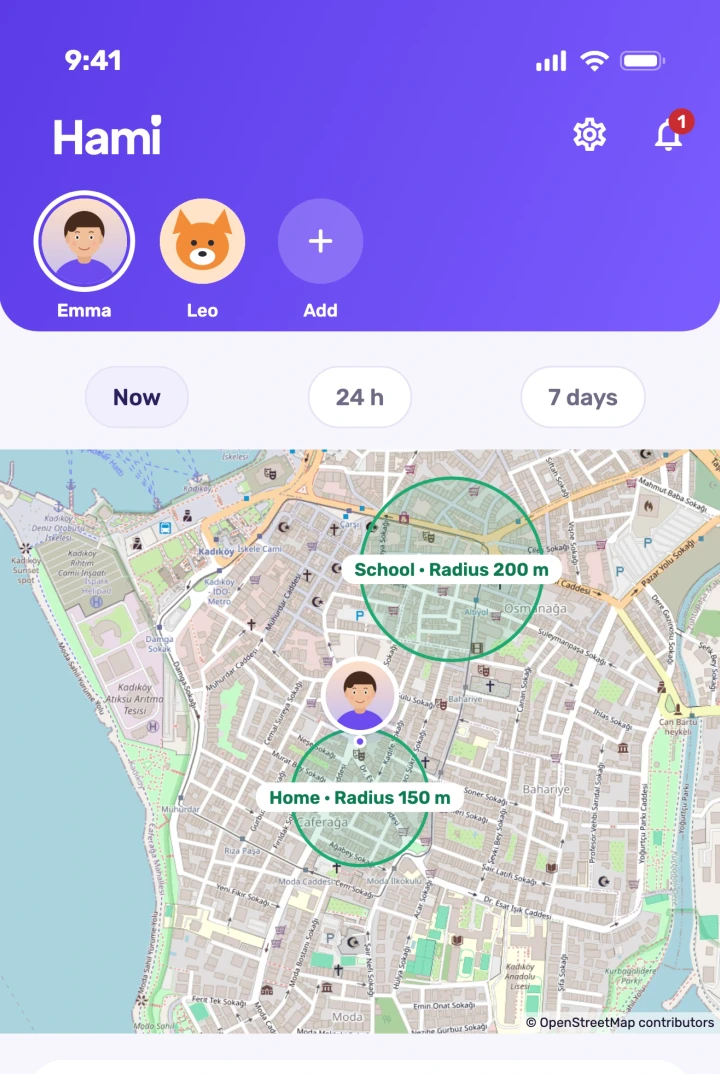
- The last location on a map with the time it was updated. Next to it, the approximate accuracy and the battery level of the child's phone.
- Locate now: asks the phone for a fresh position. While the map screen is open, the phone reports its position every 30 to 60 seconds.
- Last 24 hours and last 7 days: location history and the day's trips, such as "4.05 pm left: School", "4.40 pm arrived: Home".
- Safe zones: below.
Hami does not trail the phone continuously like a tracker; it takes the position at reasonable intervals, more often while the screen is open. That is better for the battery as well.
How safe zones work
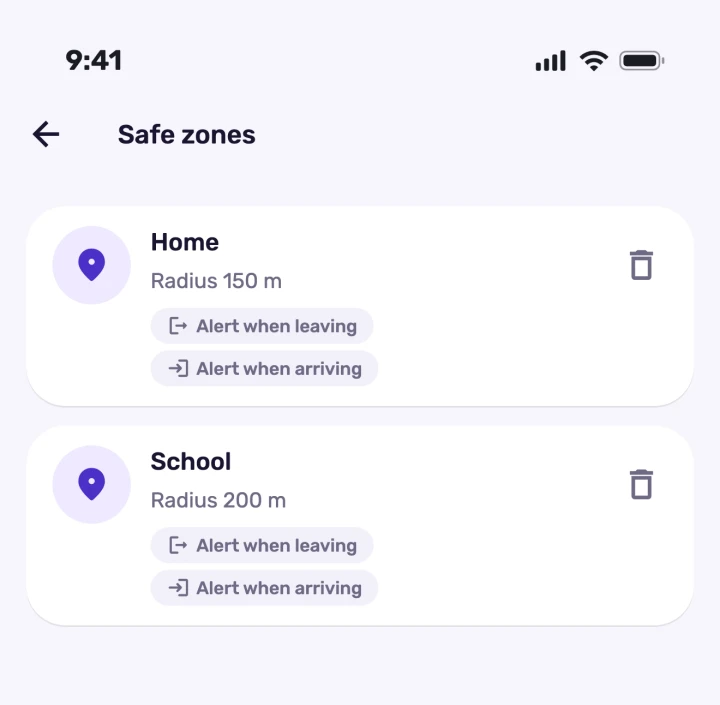
A safe zone is a centre and a radius you choose on the map. Home, school, grandma's, the sports hall. Each zone has two separate notification options: Notify on arrival and Notify on leaving. "On leaving" for school and "on arrival" for home is the most common choice: the child left school at 3.40, arrived home at 4.10, and even if you are at work, two notifications cover that part of the day.
Setting up a zone takes a minute: in Hami open Safe zones, tap Add safe zone, drag the centre on the map, adjust the radius, name it, and tick the notifications you want.
Do not make the radius too tight. GPS can drift by a few tens of metres in a city; a radius under 100 metres can produce a "left" alert while the child is still in the schoolyard. For a school, 150 to 250 metres is usually right.
SOS: communication goes both ways
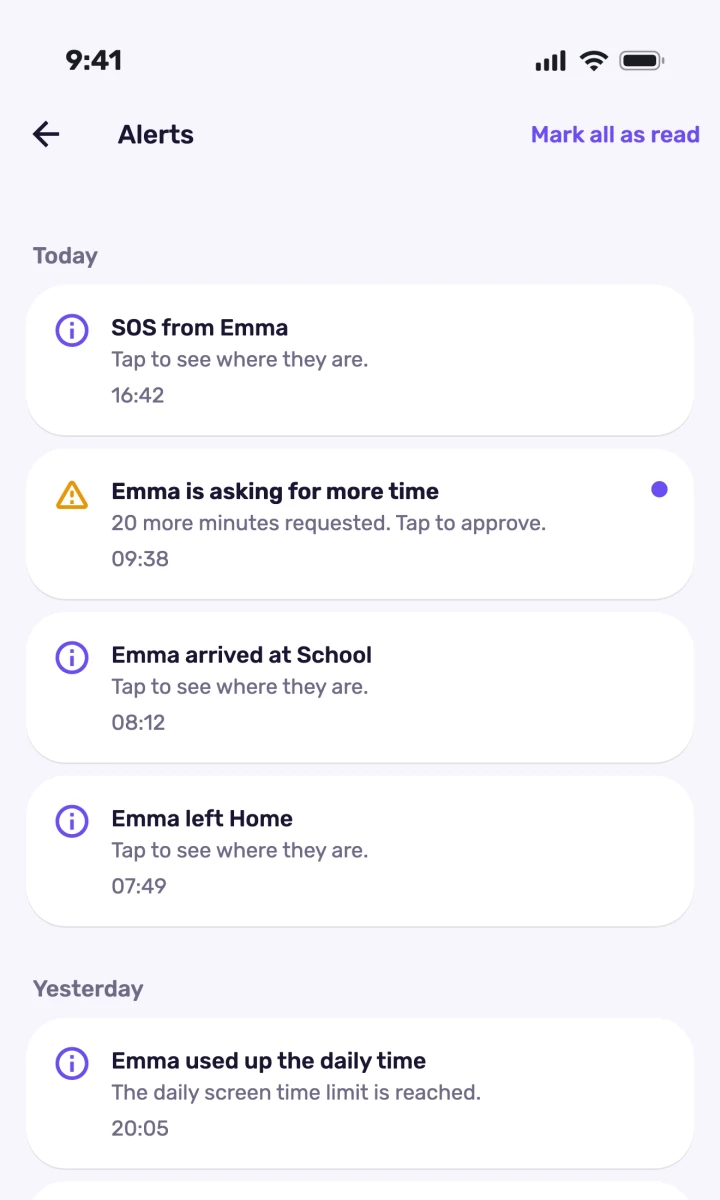
Location is not only there so you can find your child. Hami Kids has a large SOS button; when the child presses it, every parent in the family is notified immediately. The child also chooses whether to share their location with that SOS; even if they say no, the SOS still goes out. Missing the bus stop, getting off at the wrong one, losing you in a crowd: faster than unlocking the phone and dialling.
There is also Ring the phone: when the child's phone is on silent or at the bottom of a bag, you make it ring loudly from your own phone. Useful when the map says "home" but the child cannot find the phone.
Location on iPhone
Location, history and safe zones work on iPhone too. The one difference is the "Locate now" request: iOS can delay background requests according to its own priorities and may not deliver them at all if the app was force-quit. Hami waits up to a minute, then shows the last known location with its time and says the phone did not respond. The last known location is usually close enough. Other iPhone differences are in the iPhone guide.
How to talk to your child about location
The words change with age, but the core is the same: "I can see where you are, I am not hiding that from you, and it is not to control you but to be able to reach you." A few tips:
- Set it up together. Read the "What my parent can see" screen in Hami Kids side by side; it says that location is on.
- Explain SOS. Location is easier to accept when it is also a tool in the child's hands.
- Do not question every notification. "What were you doing at the park?" repeated a few times turns sharing into punishment.
- With teenagers, discuss the duration. Some families switch location on only for evenings or trips after age fifteen. In Hami you can turn location on and off per child whenever you want; when you turn it off, collected data is deleted within 30 days.
What happens to the data
Location data is kept on Hami's own servers and only the parents in your family can see it. If you turn the feature off, collection stops and stored locations are deleted within 30 days, or straight away if you ask. Deleting your account removes all of it. Details are in the Privacy Policy.
Next step
Talk to your child first, then turn on location together and add the school as the first safe zone with "notify on leaving" ticked. A week later, check whether the notifications are useful; if there are false alarms, enlarge the radius. For Hami's general setup, see the 5-minute setup guide; for the thinking behind the transparency, Transparent parental control versus secret monitoring.
Frequently asked questions
Will my child know their location is shared?
Yes. Hami Kids shows that location is on, and on Android a persistent notification is visible too. Location only turns on after you consent in the app, and your child reads it on the 'What my parent can see' screen.
What is a safe zone?
A centre and radius you choose on the map: home, school, grandma's. You get a notification when your child arrives at the zone or leaves it; you choose which, per zone.
Can I see location history?
Yes, the last 24 hours and the last 7 days. Hami also lists the day's trips stop by stop: where the child left from and where they arrived.
Does location on an iPhone work like on Android?
Location, safe zones and history work on iPhone too. A 'Locate now' request on an iPhone is best effort: iOS can delay background requests; if there is no answer, the last known location is shown with its time.
Keep reading
- Transparent parental control versus secret monitoring: why your child should know
Why secret monitoring apps backfire, what transparent parental control means, what the child needs to know, and what Hami's visible icon, notification and 'what my parent can see' screen change.
- What parental controls can do on an iPhone (and what they can't)
What a parental control app can and cannot do on an iPhone, because of Apple’s Screen Time API, and how Hami works within it.
- Set up Hami in 5 minutes
How to set up Hami in about five minutes: install on your phone, install Hami Kids on your child’s phone, enter the code and choose your rules.
Download Hami
Set it up in about five minutes. Your child can always see which rules are on.