
 Hami Team

Location & safe zones
Seeing your child's location and safe zones without spying
Hami Team7 min read
Safe zones tell you when your child arrives at or leaves a place you chose, and SOS lets your child alert every parent with one long press. Both work only after your child knows about them and location sharing is switched on. This guide takes you through each setup step in Hami, shows what you and your child see, and lists the honest limits. For the thinking behind it, and how to talk to your child about location, read seeing your child's location without spying.
A common first set is school with "Alert when leaving", and home with "Alert when arriving". Two notifications can cover the walk home even if you are at work.
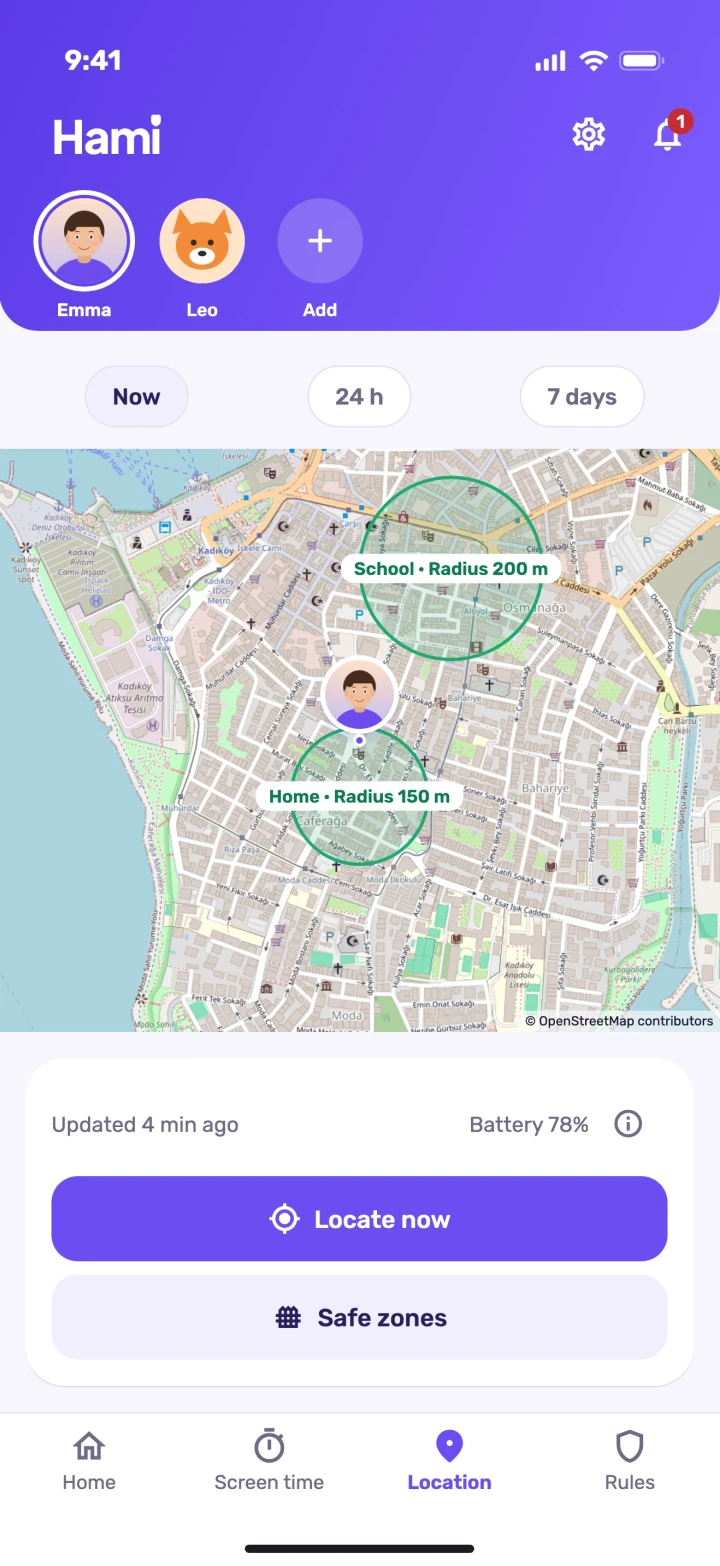
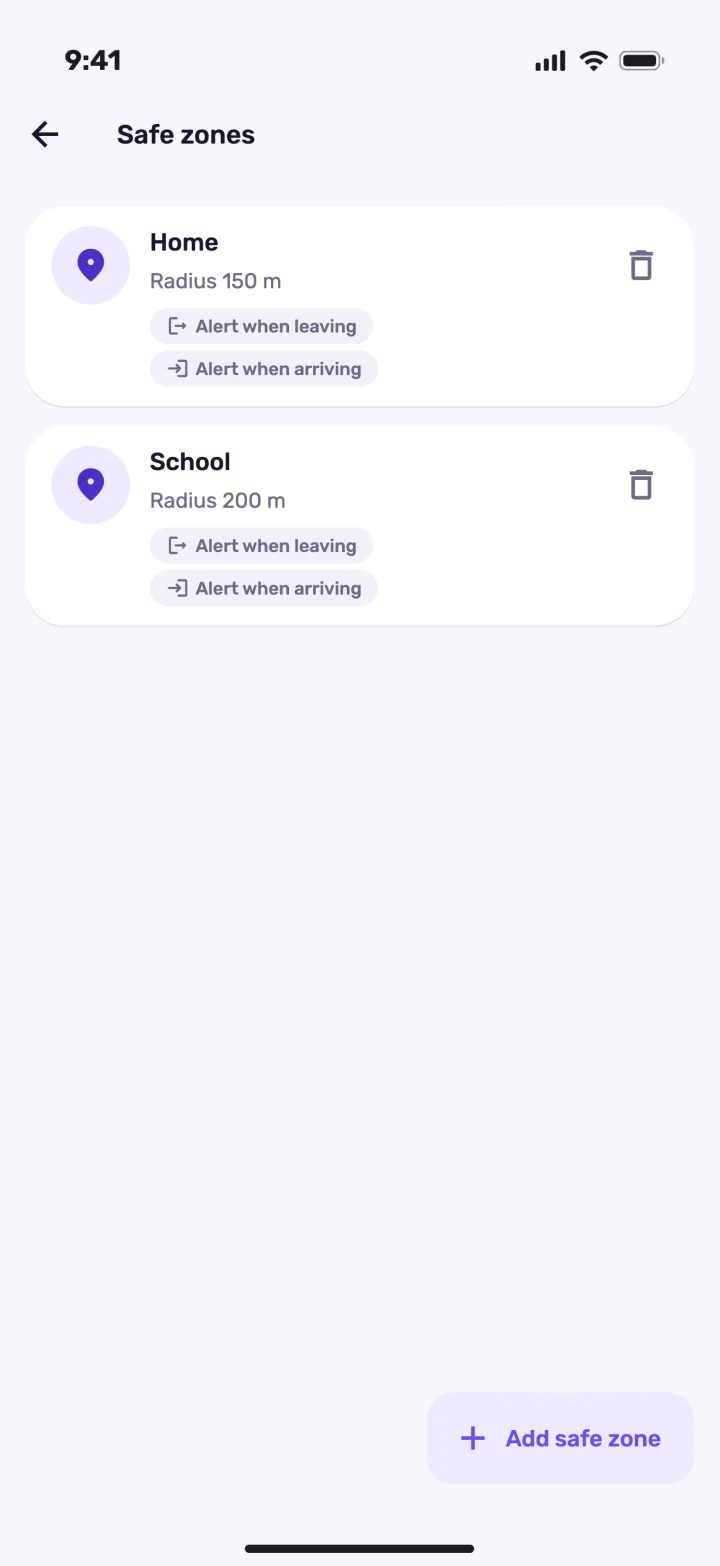
GPS is not exact. In a city it can drift by a few tens of metres, more indoors or between tall buildings. A radius of 100 metres or less can produce a "left" alert while your child is still in the schoolyard. A good start is 150 to 250 metres for a school and 100 to 150 metres for a home in a quiet area. If you get false alarms, enlarge the zone; if you get alerts late, make it a little smaller.
A zone is a circle, not a shape. A big campus may need a bigger radius than you expect, or two zones.
On the Location tab, Now shows the last position. 24 h shows the path of the last day, and 7 days the last week. Hami also lists the day's trips stop by stop: "4.05 pm left School", "4.40 pm arrived Home". Where there is no trip, it says so.
History is kept on Hami's own servers and only the parents in your family can see it. If you turn location off, collection stops and stored positions are deleted within 30 days, or straight away if you ask. Details are in the Privacy Policy.
Hami does not follow the phone second by second. It takes the position at reasonable intervals, and more often while the map screen is open. That also spares the battery. Locate now asks the phone for a fresh position.
On the child's phone, the SOS button needs a two-second press with a visible countdown, so a pocket does not send it. Letting go cancels. Before the first one, Hami Kids explains that the SOS can include the child's position, taken once at that moment, and that the child can say no; the SOS goes out either way.
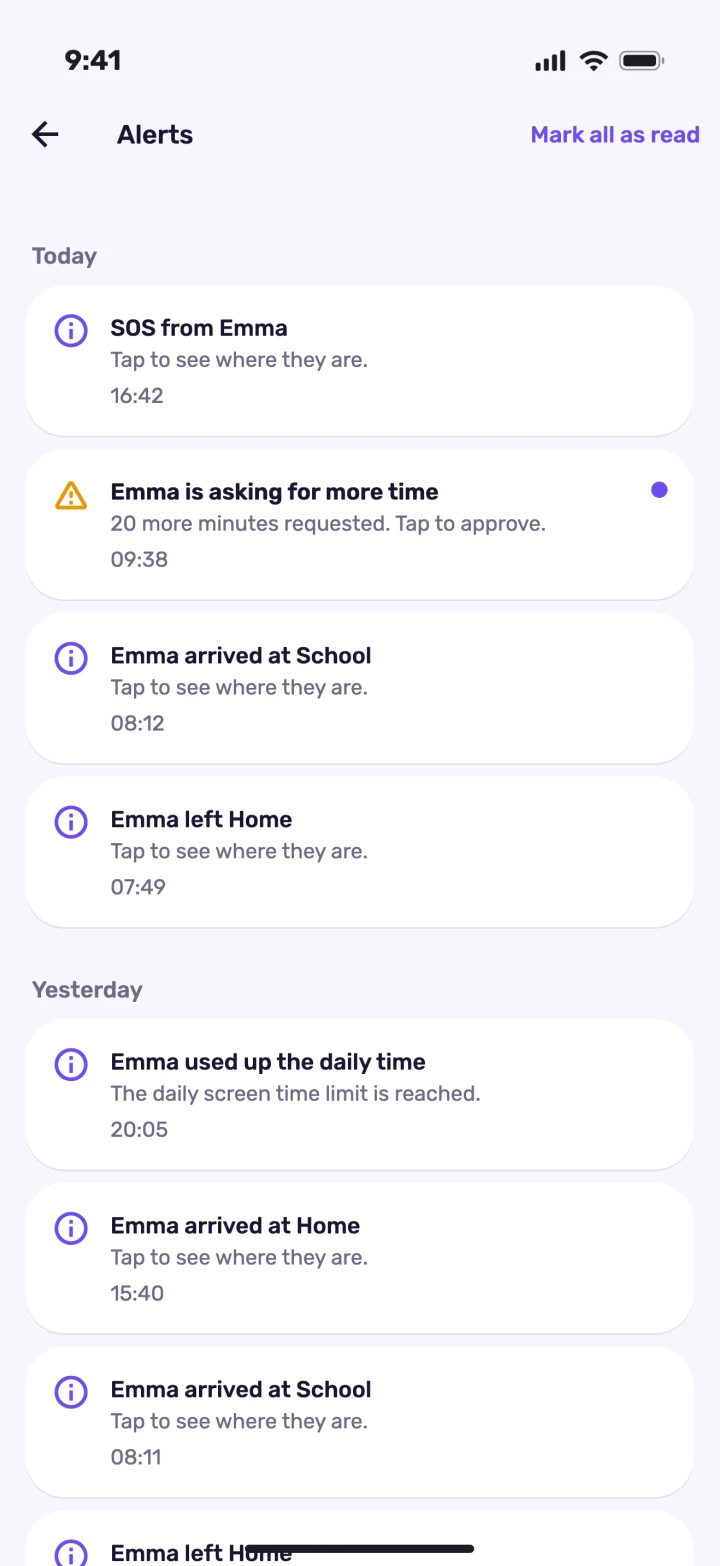
Every parent in the family receives an alert immediately, for example "SOS from Emma", with "Tap to see where they are" if the position was shared. The alert is saved in the Alerts list. If the child's phone is offline, Hami Kids says that the alert is saved and will be sent when the phone is online; the child sees the state: sending, sent to your family, your family saw it.
Tell your child what SOS is for: lost, frightened, in trouble. It is not for "I am bored". And tell them that you will answer; an SOS that nobody sees is worse than no button.
When the phone is on silent or at the bottom of a bag, open Hami and choose Ring the phone on the home screen. It plays a loud sound for about 30 seconds. The child sees "Your family is ringing this phone" with a Stop button, so it is never a surprise. If the phone does not respond, Hami says so and suggests checking that it is online.
Location, history, safe zones and SOS all work on an iPhone too. Two differences, both from Apple's rules:
The last known location is usually close enough for a quick check. The other iPhone limits are in what parental controls can do on an iPhone.
Create two zones, school and home, and set one alert for each. Keep the radius at 150 metres or more for the first week and adjust it after you see how many alerts you actually get. Then explain SOS to your child: the two-second hold, the countdown, and that letting go cancels. Do not test it with a real press, because a real press alerts every parent.
Up to 10 per child: home, school, grandma's, the sports hall. Each zone has its own name, radius and its own choice of an alert when your child arrives and an alert when they leave.
They depend on GPS, which can drift by a few tens of metres in a city. A radius under 100 metres can produce a 'left' alert while your child is still in the schoolyard; 150 to 250 metres is a sensible start for a school.
Hold the SOS button for two seconds while a countdown runs; letting go cancels it. Every parent gets an alert. The child chooses whether to share their position with that SOS, and the alert goes out either way.
Yes. It plays a loud sound for about 30 seconds, and the child can stop it from the screen. It needs the phone to be online, and on an iPhone it can take longer to arrive.
Location & safe zones
Hami Team7 min read
Transparency & trust
Hami Team8 min read
iPhone
Hami Team5 min read
Set it up in about five minutes. Your child can always see which rules are on.